You installed MarketingTasksAI. You opened Claude Desktop. You ran a task — and nothing happened. Claude just answered normally, as if MarketingTasksAI wasn't there.
Or maybe it worked the first time, but now it's stopped. Or it works sometimes but not others.
There's almost always one cause: Claude Desktop's tool permissions are set to ask for approval every single time — and at some point, that approval was dismissed. Once dismissed, the tool is blocked for the rest of the conversation.
The fix takes 30 seconds and you only do it once.
What's actually happening
Claude Desktop is cautious about tool calls by default. When MarketingTasksAI tries to run — searching the skill library, executing a framework, checking your balance — Claude surfaces a small permission prompt: "Allow marketingtasksai to run?"
If you click Allow, it runs. If you dismiss it, close it, or don't notice it, Claude marks the tool as blocked for that conversation. Every subsequent attempt to use a skill silently fails. Claude doesn't throw an error — it just answers from its own training as if your skills don't exist.
❌ Default behavior
Asks permission on every tool call. One dismiss = blocked for the entire conversation. No error message. Skills silently stop working.
✅ After the fix
All four tools permanently set to "Always allow." No prompts. No approvals. Skills work reliably every time, in every conversation.
This is Claude Desktop only. Cursor, Windsurf, Cline, and OpenClaw don't have this permission system — your tools are always available once installed. If you're using one of those clients, skip this entirely.
The fix: set all tools to "Always allow"
🔒 Enable permanent permissions — do this once
- Open Claude Desktop and click Settings
- Go to Connectors
You'll see a note that connectors have moved to Customize. Click that link.
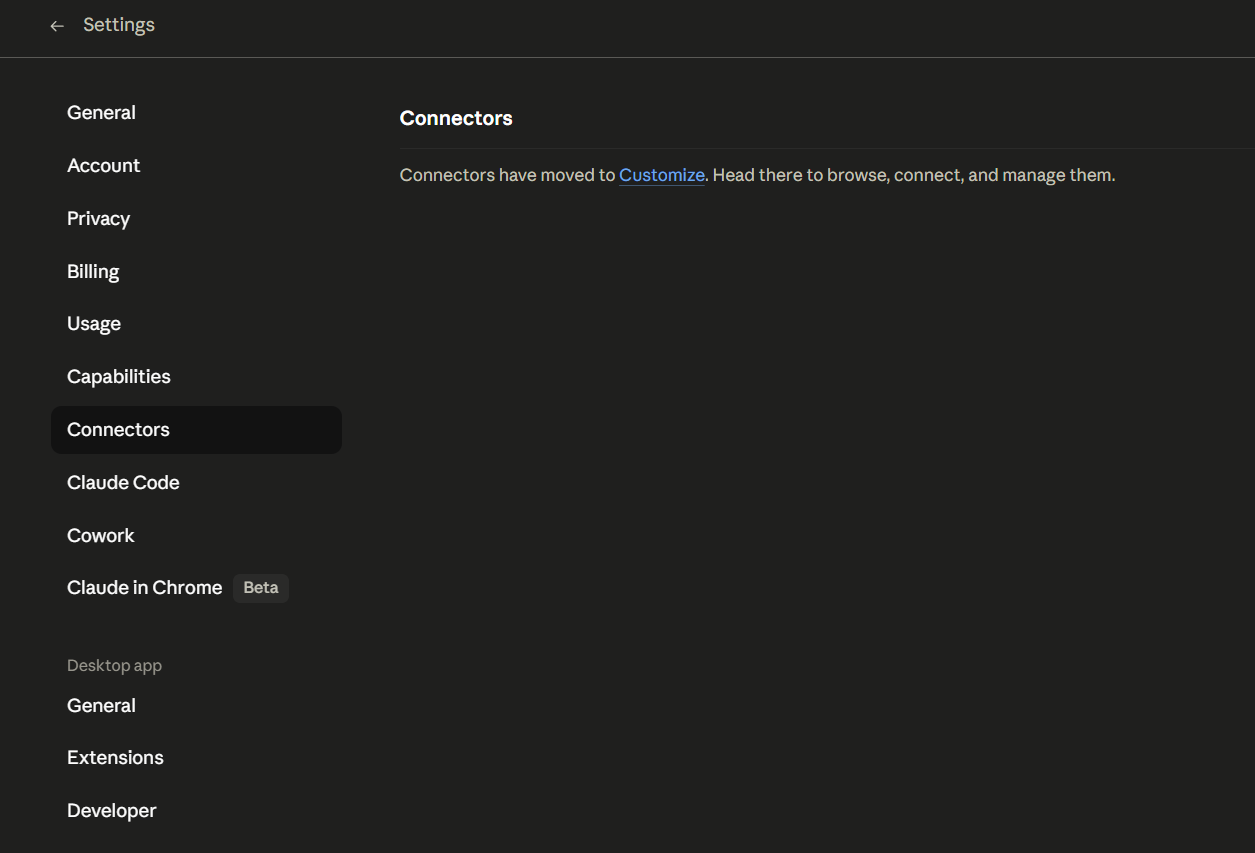
Settings → Connectors → click the "Customize" link
- In the Customize panel, look under Desktop for marketingtasksai and click it
- Next to Other tools, open the dropdown and select Always allow
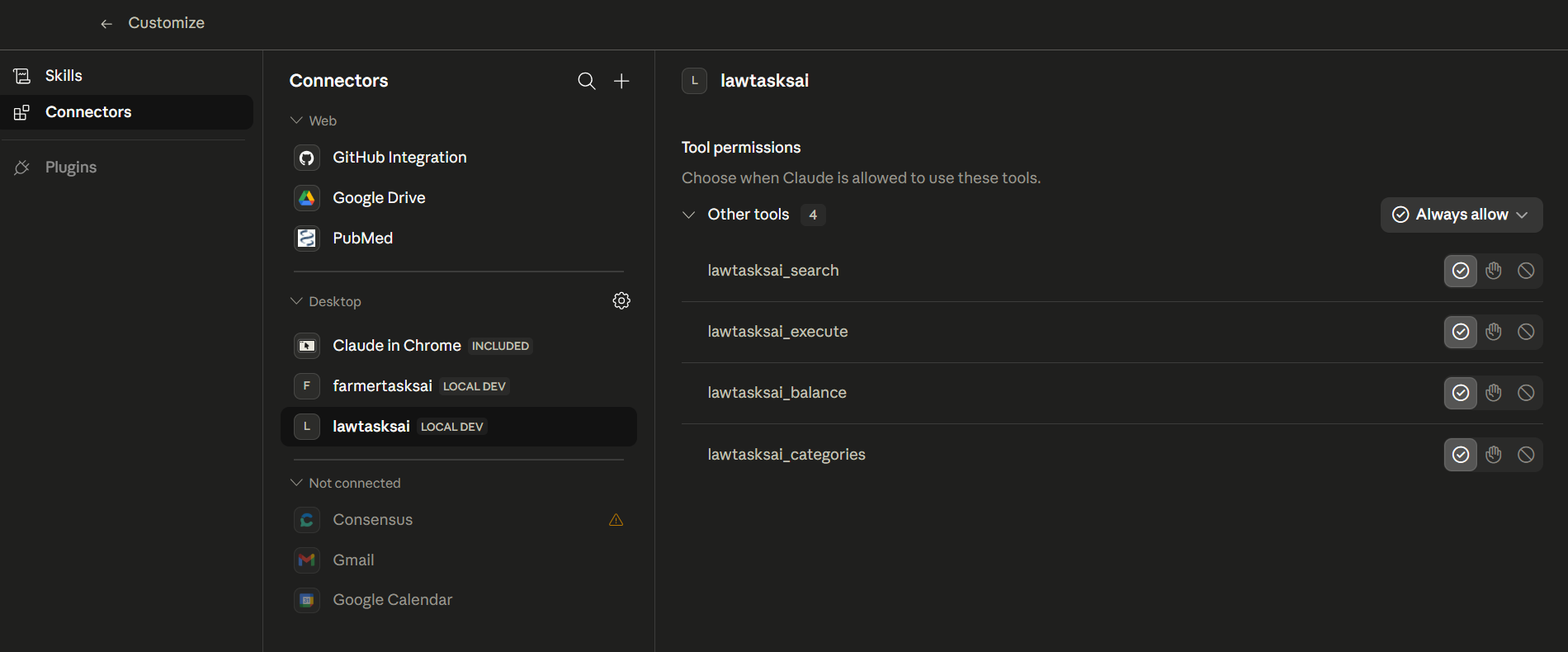
Set all four MarketingTasksAI tools to "Always allow"
You'll see four tools: marketingtasksai_search, marketingtasksai_execute, marketingtasksai_balance, marketingtasksai_categories. Set all four to Always allow.
- Start a new conversation — permissions take effect at conversation start, not mid-chat
That's it. You'll never see a permission prompt again, and MarketingTasksAI will respond reliably in every conversation going forward.
How to confirm it worked
Open a new Claude Desktop conversation and type:
You should see your credit balance returned immediately — no prompts, no delays. If you do, permissions are working correctly.
If it still doesn't work after setting permissions and starting a new conversation: fully quit Claude Desktop (⌘Q on Mac, system tray → Quit on Windows) and reopen it. MCP servers load at startup — a simple window close doesn't reload them.
Why this isn't obvious
The permission prompt is easy to miss — it's a small in-conversation UI element, not a system dialog. And when you dismiss it, Claude doesn't tell you the tool is now blocked. It just continues the conversation using its own training data, which often produces a reasonable-sounding answer. There's no failure state that screams "your skills aren't working."
This is a Claude Desktop design decision, not a MarketingTasksAI bug. The "Always allow" setting exists precisely for installed tools you trust — which is exactly what MarketingTasksAI is.
One more thing while you're here
Even with permissions working, there is one more thing that helps: be specific about the result you want. You can ask in plain English. MarketingTasksAI is designed to search the task library and find the right workflow for you.
The companion post below gives more first-use examples and explains how the local task search works.
Ready to get started?
206+ expert frameworks. 5 free credits. No credit card required.
Get started free →